
MarketRooms product guide
How to use trading chat rooms beside your chart
By MarketRooms · Published
1. Choose a market room or a community
A market room brings together people discussing an instrument. A hosted community brings together people following a particular host or group. Choose a market room when your question is about the chart in front of you; choose a community when you want to follow the same group’s ongoing ideas, research or lessons.
MarketRooms public trading chat is free. Hosted communities can have free, invitation-based or paid access. Read the host’s page and membership terms in the community directory before joining.
2. Start on the web, or open the extension
Open web chat if you want to start without installing anything. Sign in to take part, then use Rooms to find a conversation.
To keep chat beside your chart, install the extension from your browser’s official store. It supports Chrome, Brave, Edge and Firefox. Open the MarketRooms side panel from your browser toolbar and allow access to the supported trading site you want to use.
The extension supports TradingView, Hyperliquid, eToro, Binance, Bybit, OKX, Kraken Pro and Coinbase Advanced. You choose which sites it can access in its settings. The TradingView integration page explains that workflow in more detail.
3. Check the room before posting
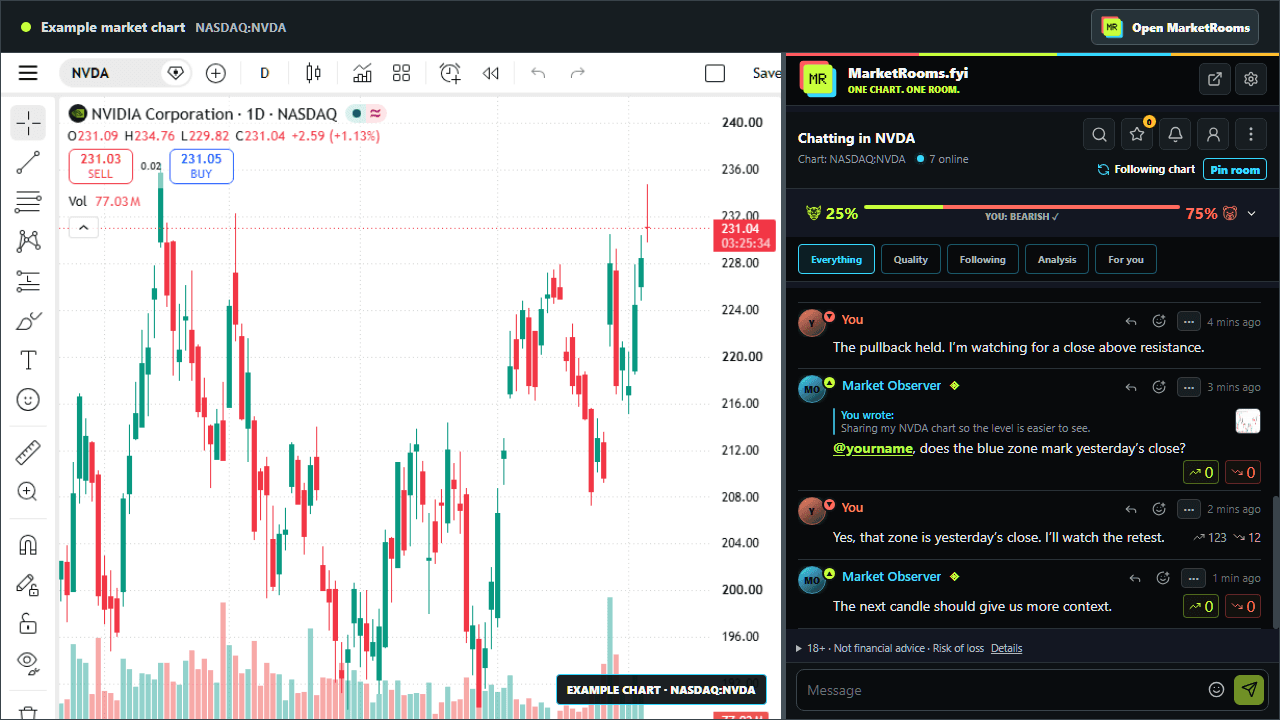
With chart following enabled, MarketRooms reads public market details and opens the matching conversation when you switch instruments. Look at the room name and chart status above the messages before posting.
Include the symbol, exchange or platform, and timeframe when those details matter. Two people discussing Bitcoin may be looking at different trading pairs, venues or chart intervals. Naming your chart makes it easier to understand why someone else sees something different.
4. Pin a conversation when you want to stay
Use Pin room to keep the current conversation open while you look at other charts. The status changes from Following chart to a pinned room. Pinning is useful when you are comparing instruments but still discussing one of them.
To follow your chart again, use the resume control beside that status. Depending on whether the chart has changed, it may say Resume auto or offer to switch to the new symbol.
5. Give your chart a useful caption
A chart alone leaves other people to guess what you want to discuss. Add the market, timeframe, observation and question. For example:
“I’m comparing the one-hour and daily BTC/USD charts on this platform. The marked area is the part I’m trying to understand. Are you looking at the same interval, and what context am I missing?”
Use a reply when responding to a particular message so your question stays connected to it. If you refer to outside research or news, include the original source and distinguish what it says from your interpretation.
Before sharing a screenshot, check the entire image for balances, account names, open positions and orders. Crop or cover private details in the editor, then inspect the final image. Private information is not hidden automatically.
6. Follow the discussion at your own pace
Use the chat filters to find analysis or contributions from traders you follow. Replies and mentions help you return to a conversation; notification controls let you choose what interrupts you.
Long and Short votes and aura scores reflect community feedback, not verified trading performance. Room sentiment describes participants’ views. Neither is a reason to treat a message as a trading instruction. You can block, mute or report people from the chat controls; see the community guidelines for discussion standards.
If the room does not follow your chart
- Check for a pinned room. Resume chart following if you want automatic switching.
- Check the site permission. The extension needs access to the supported trading site you are viewing.
- Check the page and instrument. Open a supported chart or market page and compare its symbol with the one shown in the panel.
- Choose the room yourself. Use Rooms or the web app when the page you are viewing is not supported.
If the problem persists, contact support with your browser, extension version, platform and the public symbol involved. Keep account details out of any screenshot you send.
Continue with a community
Once you have found people whose discussions you want to follow, explore how a trading community connects chat with ideas, research and lessons. You can keep using the web app or bring that conversation beside your chart.
Explore MarketRooms trading chat or see the product features and screenshots.